Create an Email template
We will create a Sales invoice Email template. This will be used to send out the Sales invoice to the customer.
Create a new Email template
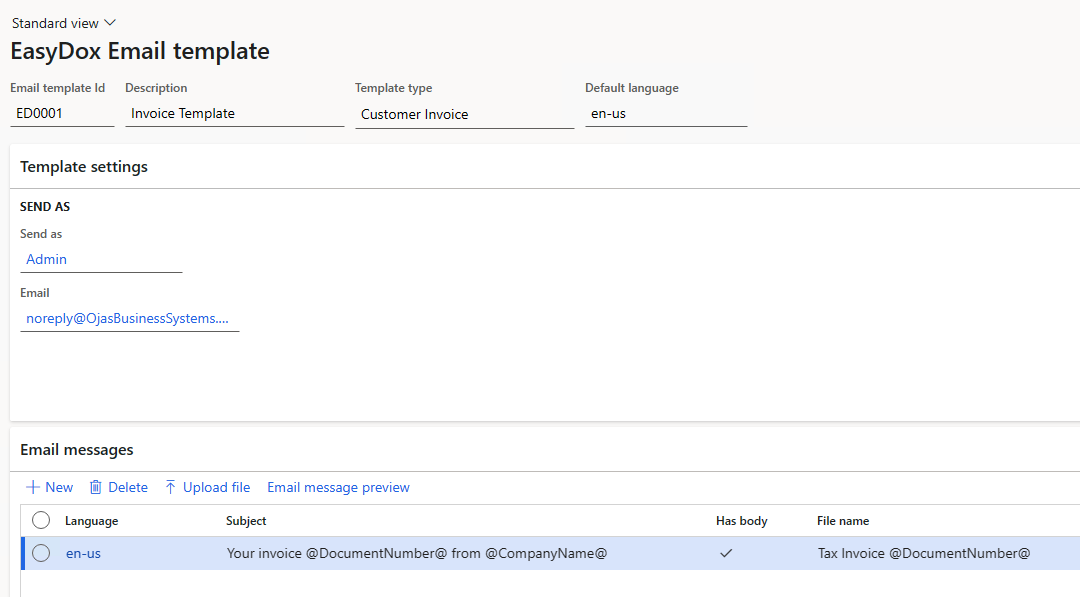
- Navigate to EasyDox > Setup > EasyDox Email template and click on New.
- Enter the following details:
- Email template Id: ED0001
- Description: Sales invoice template
- Type: Customer invoice
- Language: This will be defaulted to the company language
- Click on Save.
You will now have a new Email template and a default message. But we need to add a message to that.
Add Email template message
For this we will download a template from the Template gallery OR you can even make your own.
- Click on Email messages
- Click on New
- Enter the following details:
- Language: This will be defaulted to the company language
- Subject: Your invoice @DocumentNumber@ from @CompanyName@
- File name: Tax Invoice @DocumentNumber@
- Select
Upload fileand choose the file you downloaded - Click
Email message previewto see the preview of the email message
info
Note: the File name doesn't have the file extension as that is picked up from the report format that is printed by D365